
Your Wi-Fi router is your first shield against online threats. But many people ignore its importance, leaving themselves open to risks for sensitive information they may not even realize.
Most routers come with a generic username and password like “admin” and “password,” which is easily guessable. Anyone can access these login details from the internet, or as mentioned in user manuals, hackers can easily access your default admin login details.
You should update the router’s admin panel login credentials to keep your network safe and secure.
Why Should You Change Your Admin Password?
Here are some of the reasons why it is important.
1. Default Login Details Are Publicly Available:
Router manufacturers use generic usernames and passwords for convenience, which is the same as most of their other devices. Unfortunately, these details are widely documented online, making your network easy for others to access, especially for hackers.
2. Other people, especially hackers, can :
- Monitor your online activities.
- Redirect your internet traffic.
- View and steal your sensitive information, such as credit card details.
- Access your computer files.
- Install viruses.
- Compromise connected devices.
3. Improve Your Network Security
Make sure to use a strong and unique password that no one can guess and so only you can access your router settings.
4. Protect Your Personal Information:
Your admin panel stores data, including security settings, connected device details, personal data, credit card numbers, etc. Updating your admin default password adds an extra layer of protection for your network.
Do not use common words or numbers that are easily guessable for anyone, like “12345678.”
Note: Your router’s admin login credentials are different from your WiFi name and password.
- To change your WiFi network name, see our guide: How to Change Your WiFi Network Name (SSID).
- To change your WiFi password, see our guide: How to Change Your WiFi Password.
Steps to Change Admin Panel Password:
Using the admin tool page, you can manage your Wireless Gateway settings, including security and advanced configurations. If you want to enhance the security of your Wireless Gateway or home network, we recommend changing the default password for the administrative.
This personalized password will be required to access and modify your network settings in the future.
Note: If you forget your new password, you will need to perform a Factory Reset to restore the default settings. Make sure to write down your new password and store it in a safe place.
- First, open a web browser: you can use your device (computer, phone, or tablet) connected to your Wireless Gateway network.
- In the browser’s address bar, type http://10.0.0.1 and press Enter. Now, the admin login page will appear.
- Enter default login credentials:
- Username: admin
- Password: password
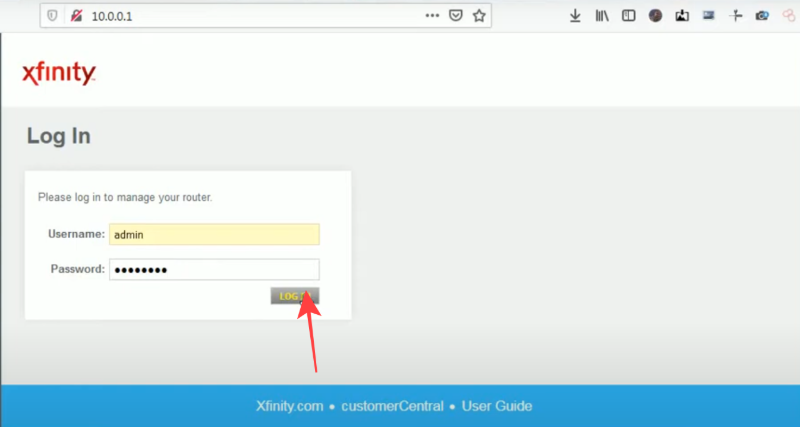
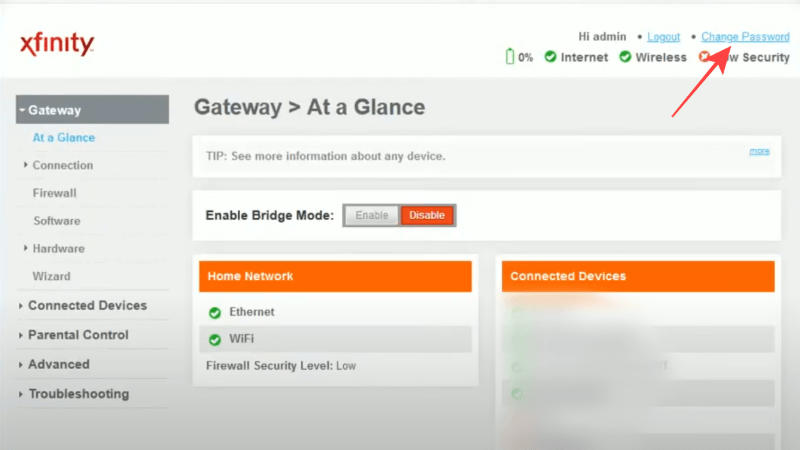
- Now click Login. You will be directed to the At a Glance page.
- On the top-right corner of the page, click “Change Password.”
- On the change password page, first enter the current password.
- In the new password field, create a strong password of your choice.
- Re-enter it in the confirm password field.
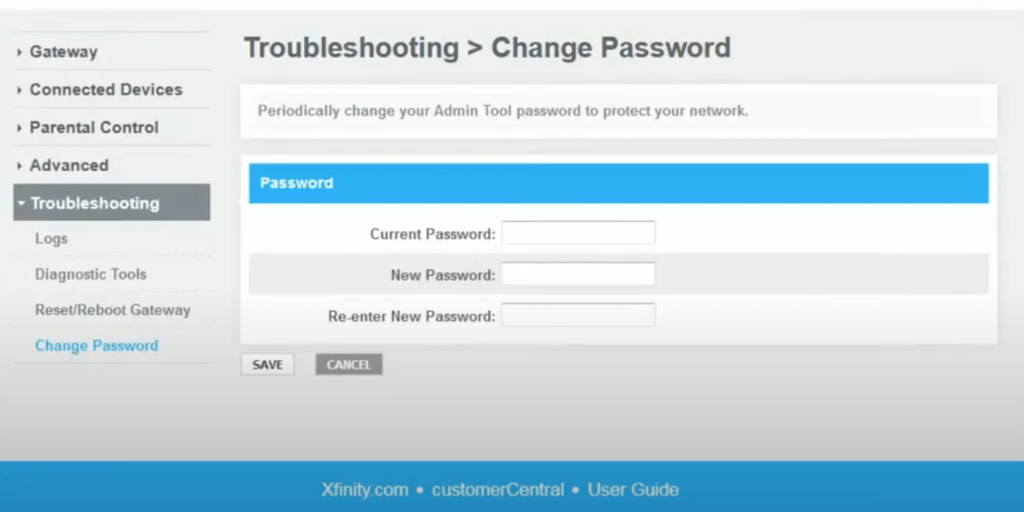
- Click Save to confirm the new password. Your settings will now be updated.
Pro Tip: To make a strong password, use uppercase, lowercase letters, numbers, and special characters.
Note: The username cannot be changed and will always be admin.