
192.168.1.1 is a private IP address commonly used by home broadband routers as their default gateway. When you type 192.168.1.1 in a browser, you’re connecting to the router’s admin panel, where you can check your router’s settings.
It belongs to the IPv4 private address range defined by the Internet Assigned Numbers Authority (IANA). The range is reserved for private networks.
You can customize settings according to your preference. Here are some popular settings and feature you may want to know about:
- You can use the above IP Address to log in to your router’s admin panel and customize your settings such as Wi-Fi names (SSID), passwords, security settings, and parental controls etc.
- Monitor connected devices, manage bandwidth, and set up guest networks.
- Update your router’s firmware for better performance and security improvements.
- You can change encryption types (WPA2/WPA3), set up firewalls, block suspicious devices and websites, etc.
How to Log In to 192.168.1.1
- First, ensure your device is connected to your router via Wi-Fi or an Ethernet cable.
- Now launch a web browser (e.g., Chrome, Firefox, Safari).
- In the address bar, type http://192.168.1.1 and press Enter.
- A login prompt will appear. Enter the Username and Password and click login. Common default usernames and passwords are often ‘admin’ for both fields.
Forgot Your Router’s IP Address, Username, and Password?
Don’t worry, it happens to the most of us. Here’s what you can do.
If you have never changed the default login:
Your router’s original credentials should still work. You can find them by checking:
- Check the router’s label: Look on the back or bottom of your router for a sticker. The router manufacturer always lists the default IP address, username, and password.
- Check the user manual: The manufacturer also includes the default login information in the manual.
- Our provided list: We have a comprehensive list of common IP addresses and default admin login details to help you out.
If you changed the password and forgot it:
Unfortunately, if you’ve set a custom password in the past and can’t remember it, your only option is to perform a factory reset.
This will wipe all your custom settings (including your Wi-Fi name and password) and restore the router to its original factory state. You can then log in using the default credentials found on the sticker or in the manual.
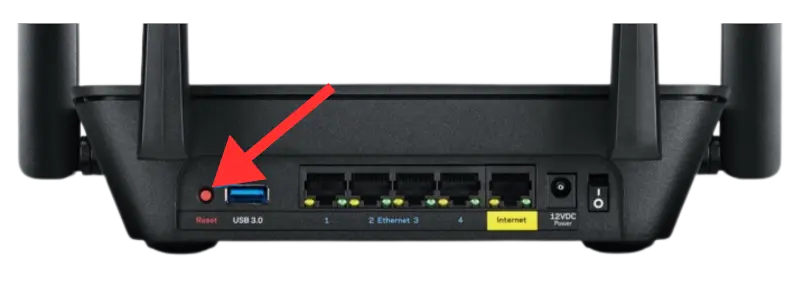
To reset your router:
Locate the small, recessed Reset button on your router (you might need a paperclip). Press and hold it for about 10-15 seconds until the lights on the router flash. Your router will reboot and its settings will be restored to default.
Troubleshooting
If you’re unable to access the router’s admin page, you should:
- Check connections and make sure your device is properly connected to the router.
- Check your router IP Address and confirm that 192.168.1.1 is your router’s correct IP address. Some routers use different default IPs, such as 192.168.0.1 or 10.0.0.1.
- Clear browser cache, sometimes cached data can cause issues.
- Temporarily turn off any firewall or antivirus software that might be blocking access.
- Use a different browser or device, switching browsers or devices can fix the problem.